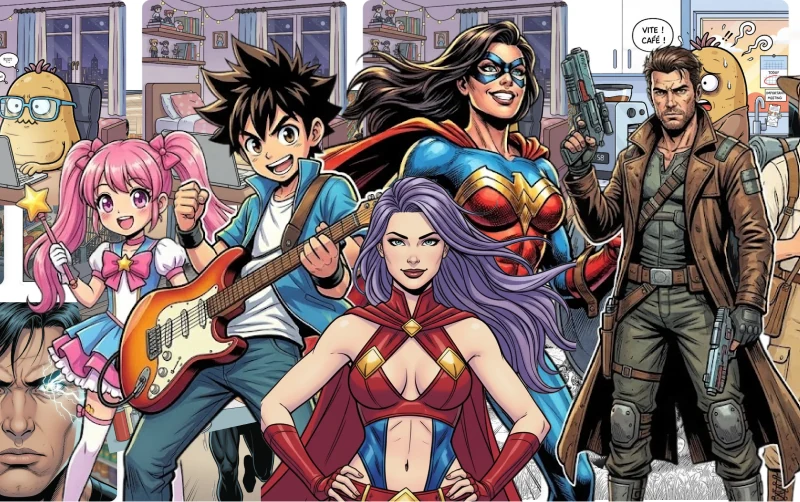
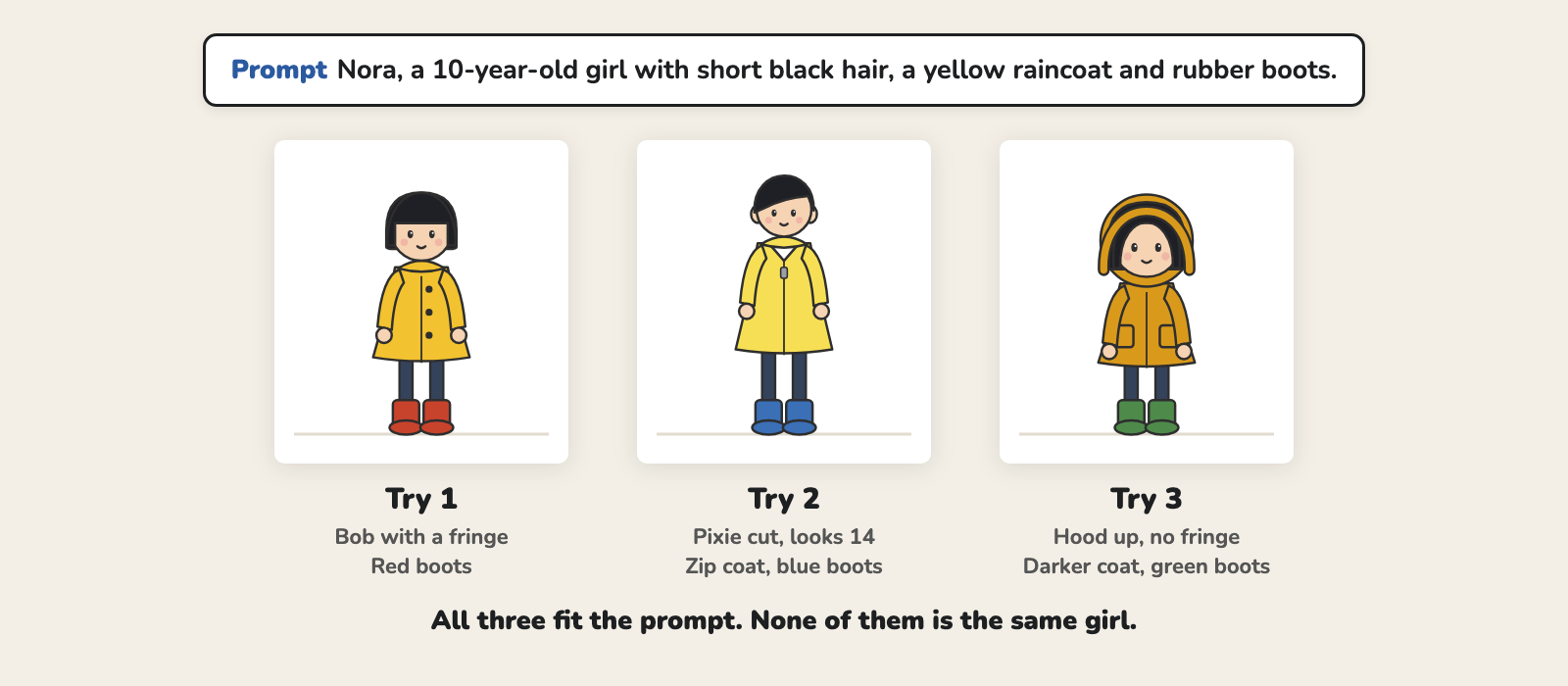
You ask an AI for Nora, a 10-year-old girl in a yellow raincoat. The first panel looks right. In the second, she has a new haircut. By the third, she looks 14. Readers notice at once: when the face changes, they think it’s a new person.
This guide explains why AI image tools do this, then shows the three things that fix it: the right model, a name and a character sheet. The examples follow Nora from our comic script guide. She searches a night market in the rain for her lost cat, Biscuit.
The short version
- Know why it happens. Each image starts from scratch, and your words leave most details open.
- Pick a model that takes reference images. Words alone can’t hold a face.
- Give each character a name and one fixed description. Reuse both word for word.
- Make a character sheet and attach it to every panel.
- Keep one art style from the first panel to the last.
- Check each panel against the sheet before you move on.
Why AI forgets your character
Each picture starts from scratch
An image model keeps no memory of your comic. Each request is a new draw. Diffusion models, such as Stable Diffusion, start from random noise and shape it, step by step, into a picture that fits your words. The noise changes every time, so the picture does too. Hugging Face’s guide to these models puts it in one line: “Diffusion is a random process that generates a different output every time.”
You can fix the seed, the number behind the noise, and you will usually get the same picture again. But a comic doesn’t need the same picture twice. It needs the same girl in a new pose, in a new place.
Words leave gaps
“Short black hair” fits millions of girls. So does “yellow raincoat”. Your prompt sets a few details and leaves the rest open: the shape of the face, the cut of the hair, the color of the boots. The model fills those gaps at random, then fills them again for the next panel.
Even the model makers say so
Google calls it “a fundamental challenge in image generation”: keeping a character’s look “across multiple prompts and edits”. Researchers who studied the problem found that people who use these models “struggle with the generation of consistent characters”. A long chat doesn’t solve it either. Google’s own prompt guide warns that a character’s “features begin to drift after many iterative edits”.
Each panel gets a new artist
Animation studios faced this long before AI. When many artists draw the same character, each one draws them a little differently. So studios hand out a model sheet: a page that shows the character from several angles, with a few facial expressions. Model sheets make sure that, “despite the efforts of several or many artists, their work exhibits unity”.
An AI tool works like a new artist for every panel, one who has never seen your character. The fix is the same as in a studio: give every artist the same sheet. For an AI comic, that means two things: a model that takes a picture of your character, and a good picture to give it.
Choose the right model
Your choice of model matters more than your prompt. A model that reads only text has nothing to hold the face in place. You need one that takes reference images: you attach a picture of your character, and it draws that character in the new scene.
Before you pick a tool, check four things:
- Reference images. Can you attach a picture of your character? This one decides the rest.
- Characters per image. How many different characters can it keep at once? Nora, her mother and Biscuit in one panel makes three.
- Style. Can you keep one art style for the whole comic?
- Edits. Can you fix one detail, like a boot or a sleeve, without making the whole panel again?
Here is what the main models offered in November 2026, according to their makers:
| Model | Max. reference images | Max. characters |
|---|---|---|
| Google Nano Banana 2.1 | 14 | 4 |
| Google Nano Banana Pro | 14 (3 of them for style) | 5 |
| Black Forest Labs FLUX.2 | 10 | Not stated |
| OpenAI GPT Image | No limit stated | Not stated |
| Midjourney Edit Model | 4 | Not stated |
Sources: Google’s image generation docs, Black Forest Labs’ FLUX.2 announcement, OpenAI’s image generation guide and Midjourney’s Edit Model page.
These numbers change often. Check them on the maker’s own page before you pay.
What about chat apps?
You can make a comic in a chat app such as ChatGPT or Gemini: attach a picture of your character, then ask for each panel. Over a long chat, the face can drift. When it does, Google’s advice is to “restart a new conversation with a detailed description”. For a whole comic, a tool that saves your characters and sends their pictures for you spares you a lot of copying and pasting.
Give each character a name
Pick a name and use it in every panel. Never swap it for “the girl” or “she”.
What the name does depends on the tool:
- In an app that saves characters, like Emaki, the name links your words to the saved picture. Write the name, and the app attaches the picture.
- In a chat or a plain image tool, the model has never heard of Nora. The name is for you: it labels one fixed description that you paste in full each time.
Choose the name with care:
- Keep names distinct. Ana and Anabel, or Max and Maxine, are easy to mix up, for you and for the tool.
- Skip famous names. The model may already link the name to a face that isn’t yours.
- Keep it short. You’ll type it in every panel.
Write one description and keep it
Next to the name, write a fixed description: the details a reader uses to tell the character apart. Google’s prompt guide for its image model sums up why: “The more detail you provide, the more control you have.”
Here is Nora’s:
Nora, 10, small for her age. Round face, dark eyes. Black chin-length bob with a straight fringe. Yellow raincoat, buttoned, hood down. Navy tights. Red rubber boots, two sizes too big.
Cover five things:
- Age and build: “10, small for her age”.
- Face: its shape, and one mark if there is one, like freckles or glasses.
- Hair: color, length and cut. “Short” isn’t enough. Say “chin-length bob with a straight fringe”.
- Clothes: the outfit they wear most, with its colors.
- One detail readers will spot: for Nora, boots two sizes too big.
Then reuse it word for word. If panel 3 says “yellow raincoat” and panel 7 says “mustard coat”, you’ve asked for two coats.
Make a character sheet
A description fixes the words. A character sheet fixes the picture. It’s one image that shows the character the way you want them drawn, and you attach it to every panel as the reference.
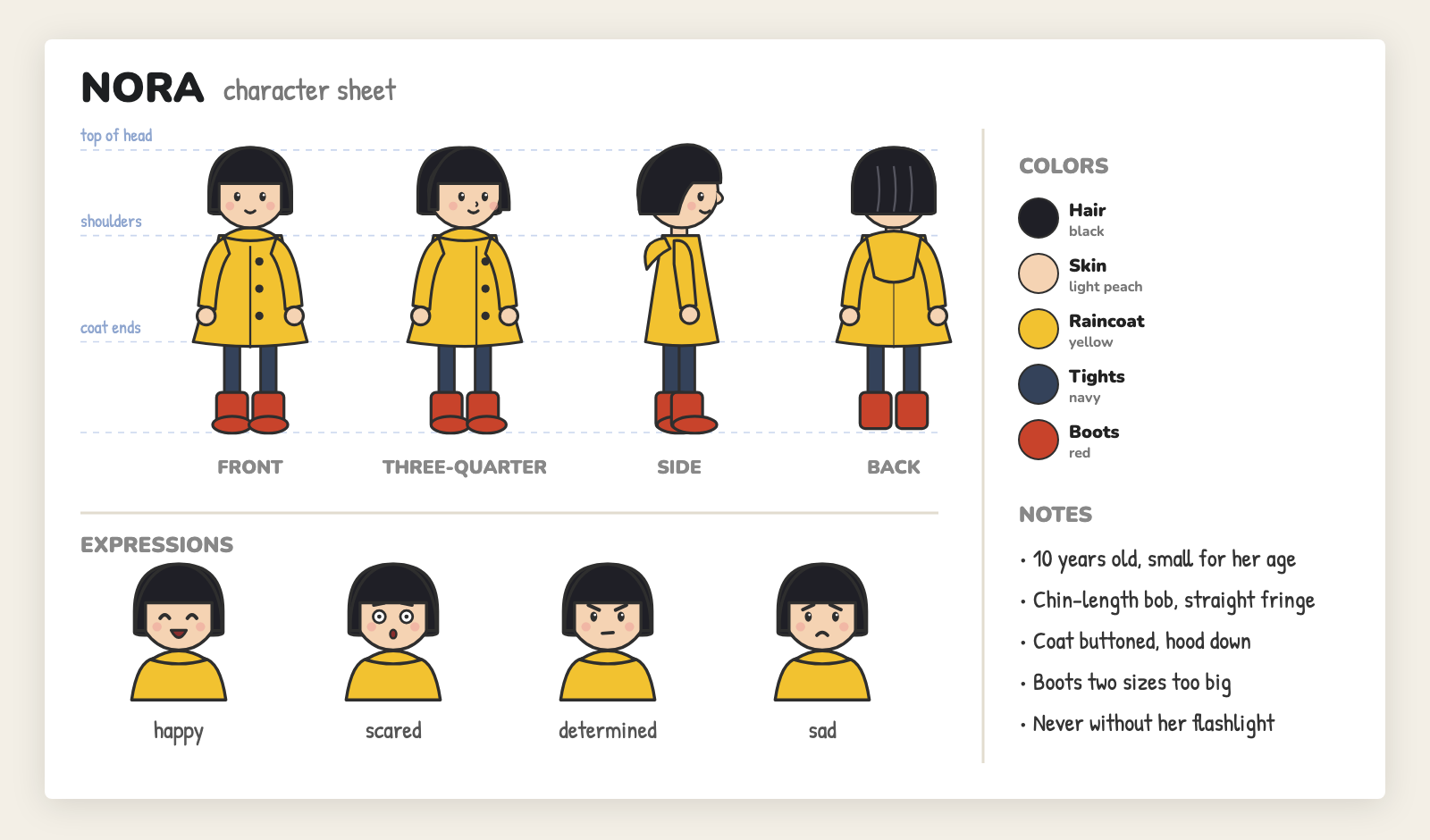
A sheet for an AI comic needs:
- Four views: front, three-quarter, side and back, full body, standing. Artists call this a turnaround.
- A few expressions: happy, scared, angry, sad. They help with close-ups.
- The colors of hair, skin and clothes.
- Poses and outfits, if the story needs them: running, sitting, a fight stance, a school uniform.
- A plain background: white or light grey, with nothing else in the frame. You want the model to copy the character, not the room.
To make one:
- Generate the front view from your description. Retry until you like it. From now on, this picture is the character.
- Attach it and ask for the full sheet with the prompt below.
- Check it against your description. Fix mistakes now, because every panel will copy them.
A prompt for a full character sheet
Copy this prompt, fill in the brackets, and attach your front view:
Character sheet for [name]: [your fixed description].
Style: [your comic's style, e.g. US comics, bold ink, flat colors].
Same character in every drawing: same face, hair, body, colors and outfit
as in the attached picture. Plain light grey background. No text, no labels.

Row 1, turnaround: front, three-quarter, side and back views.
Full body, standing straight, arms relaxed.

Row 2, expressions, head and shoulders: neutral, happy, laughing, sad,
angry, scared, surprised, determined.

Row 3, poses, full body: walking, running, sitting, jumping, pointing,
fighting stance.

Row 4, outfits, full body, front view: [main outfit], [second outfit],
[third outfit].

Last row: close-ups of [props and details, e.g. hands, glasses, a weapon],
and swatches of the main colors.
For Nora, the first line reads: Character sheet for Nora: 10, small for her age. Round face, dark eyes. Black chin-length bob with a straight fringe. Yellow raincoat, buttoned, hood down. Navy tights. Red rubber boots, two sizes too big. Her outfits row could add pajamas and a school uniform, and her close-ups the flashlight and the boots.
A few tips:
- Split the sheet if the drawings come out small. Twenty figures in one image leave little room for each face. Ask for one row at a time, and attach the turnaround each time.
- Leave out labels. The sheet is for the model, not for readers, and models still misspell words in images. Google says it is still working on text in images.
- Drop the rows you don’t need. A character who never changes clothes doesn’t need an outfits row.
Make one for each character who comes back, pets included. Biscuit needs a sheet too.
Keep one art style
The same girl drawn as manga and as a US comic looks like two people. Pick the style before the first panel and keep it to the last. Add the same style words to every prompt, or use a tool that sets the style once for the whole comic. For ideas, see the AI manga maker and the webtoon maker.
How Emaki keeps your characters the same
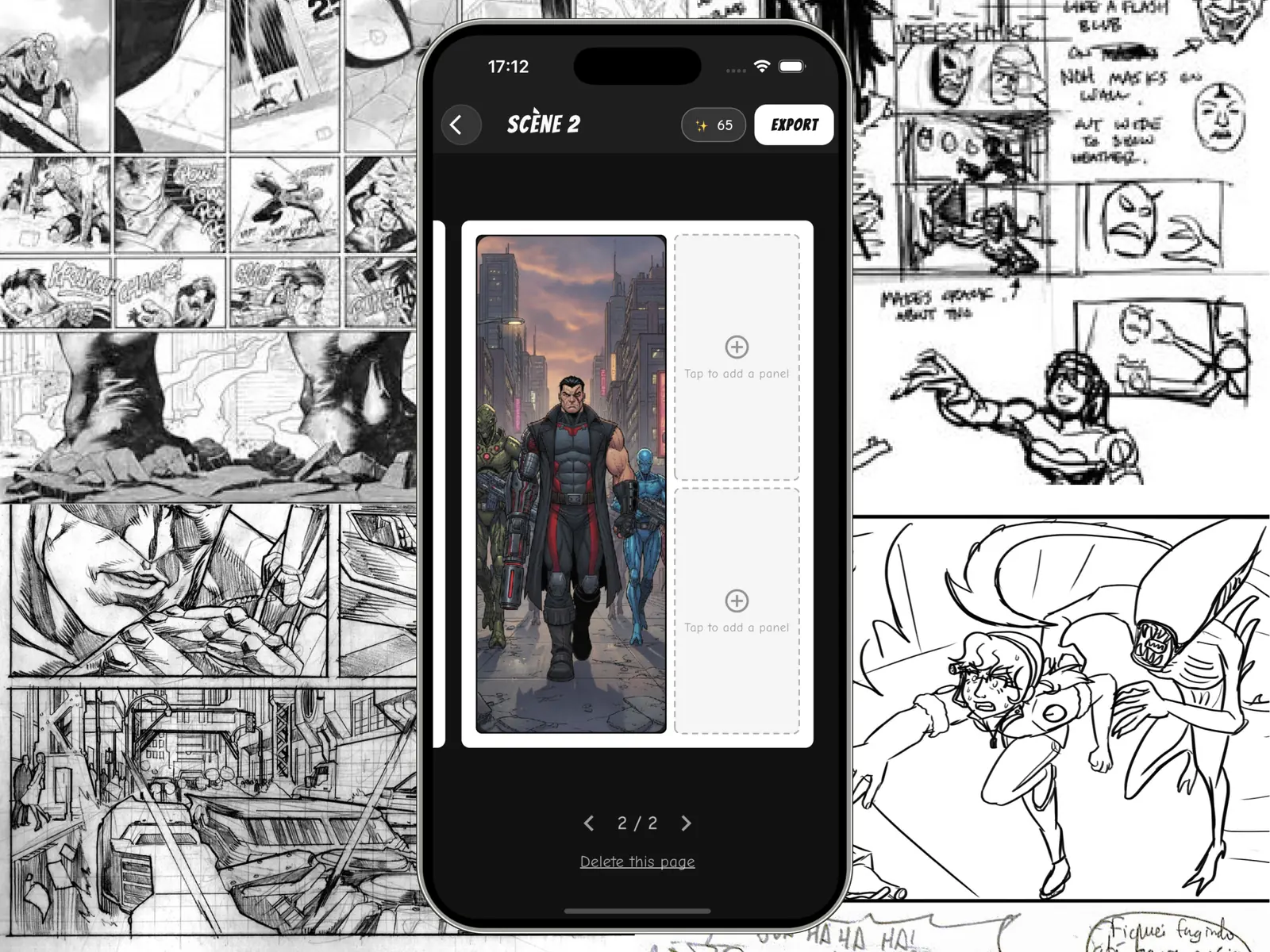
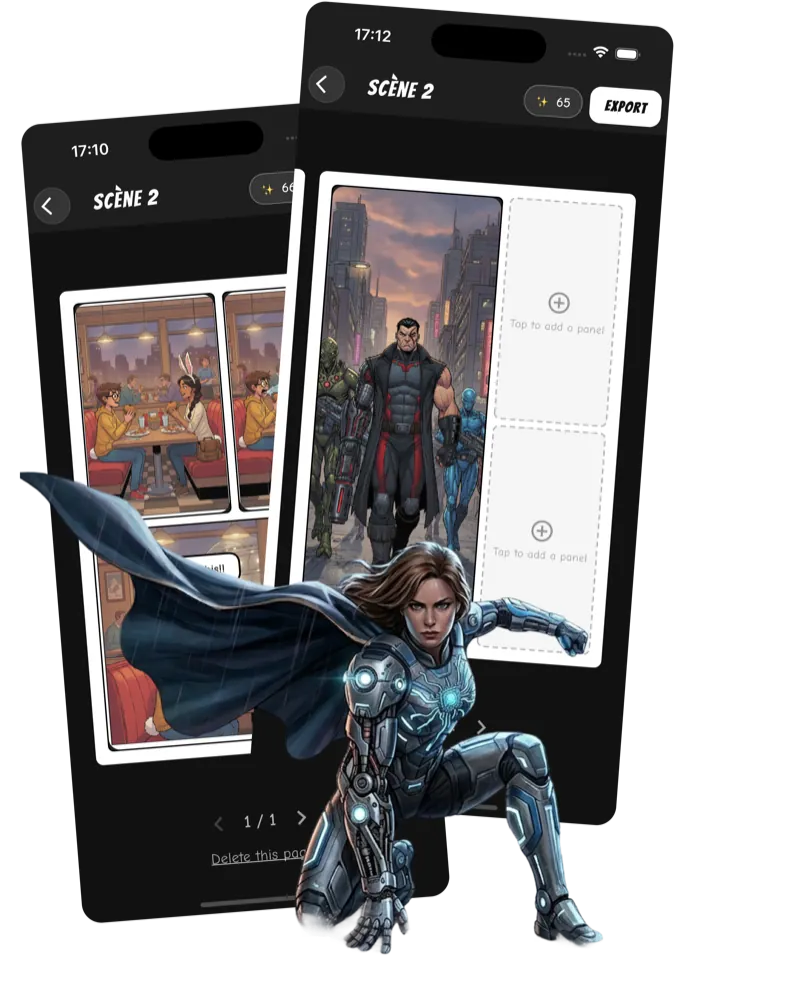
Emaki is our comic app for iPhone and iPad. It does the steps above for you: you make each character once, and the app sends their picture with every panel that names them.
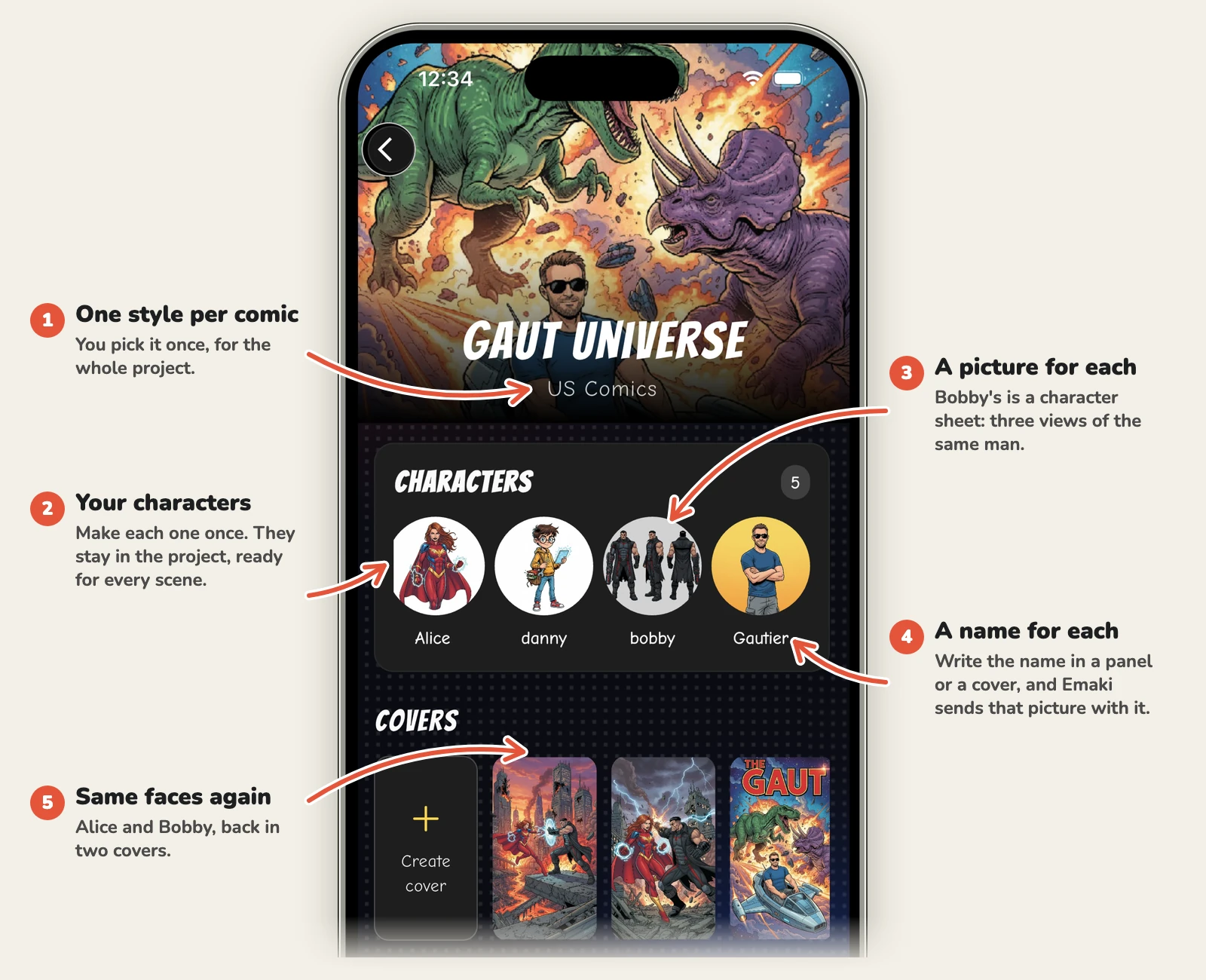
Step 1: Pick one style for the whole comic
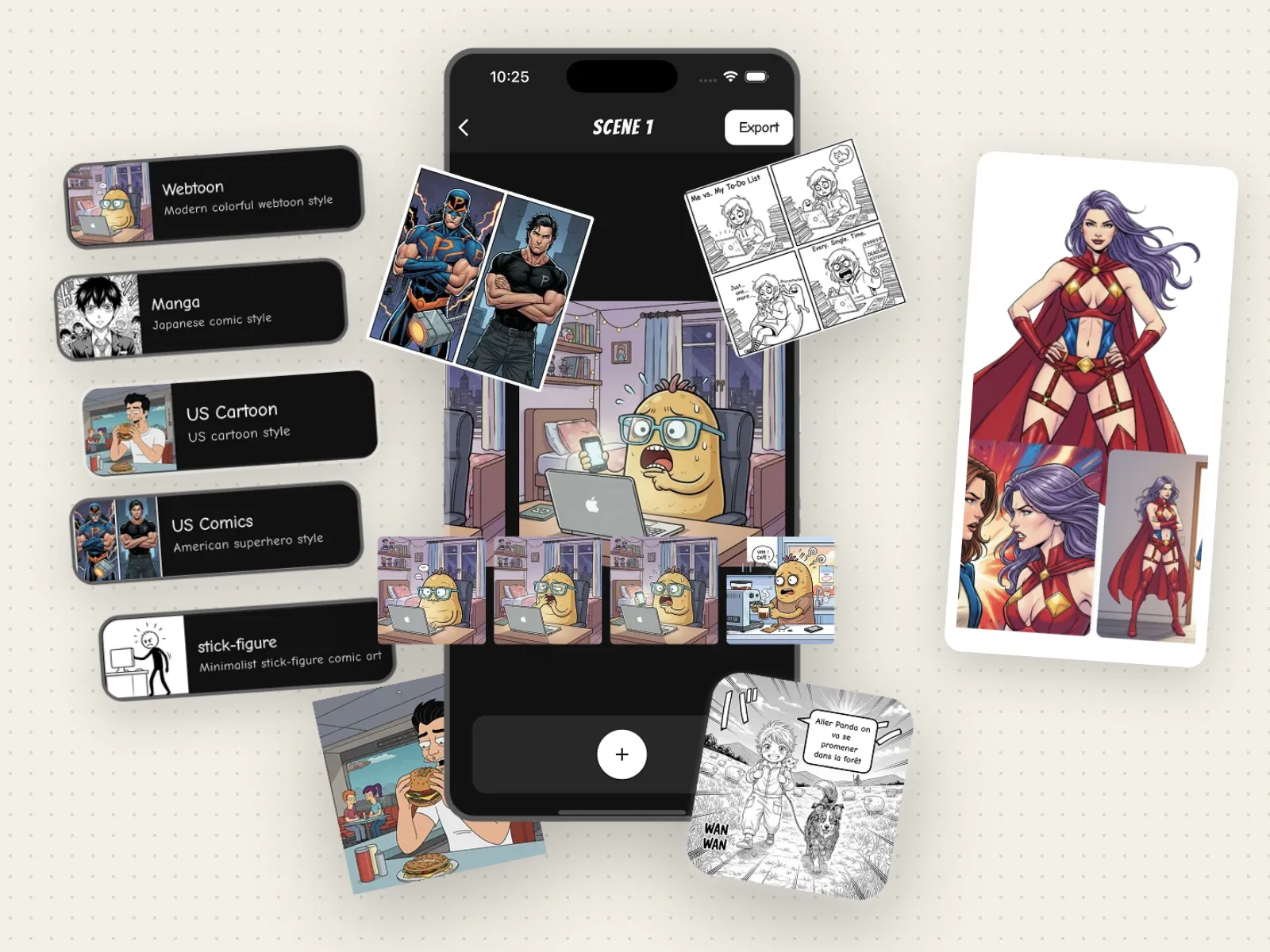
When you create a project, you choose its style: Manga, Webtoon, US Comics, US Cartoon and more. Emaki applies that style to every image in the project, characters included, so the comic can’t slide from one style to another.
Step 2: Create each character once
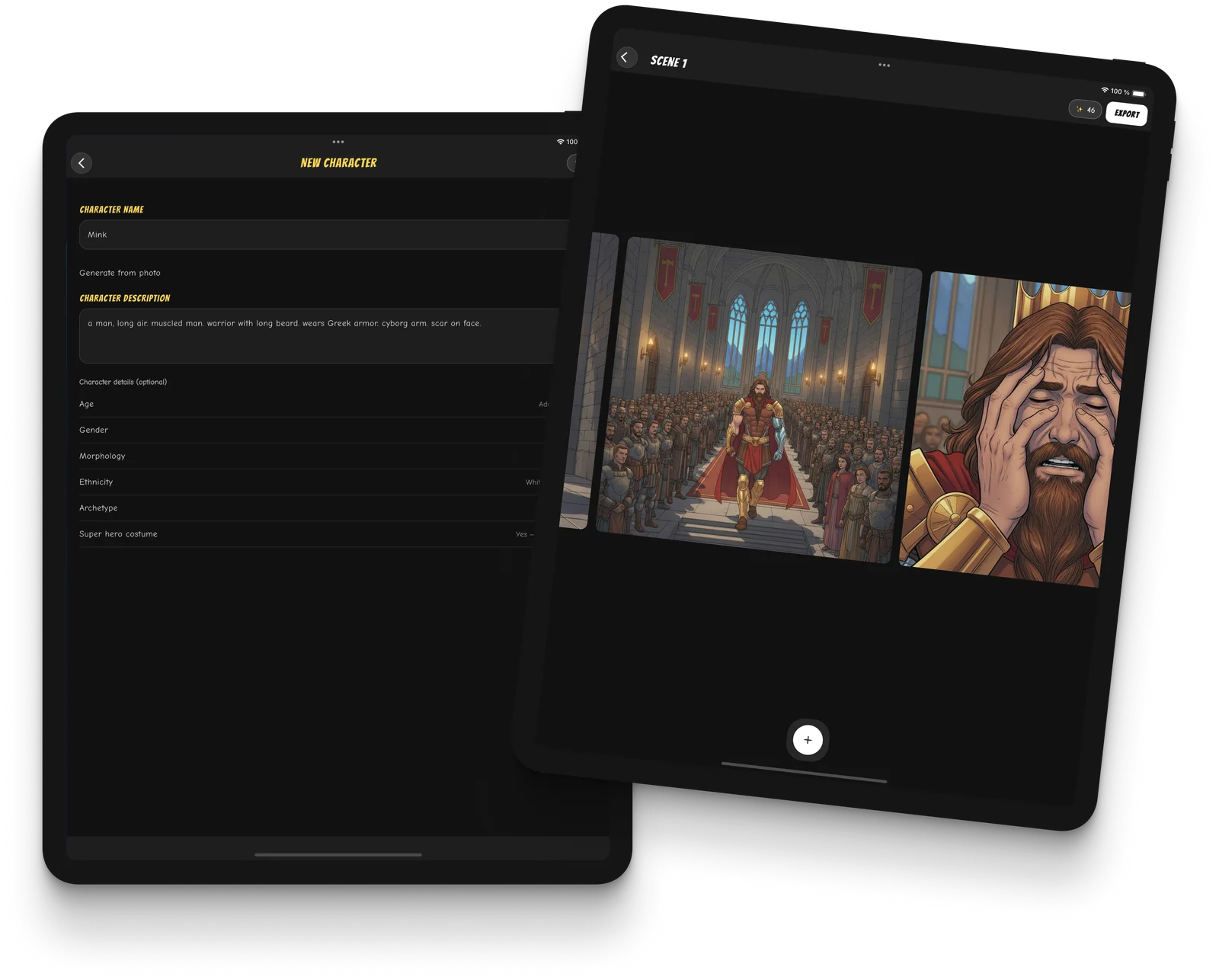
Open Characters, tap Add Character, then fill in:
- Character name: the name you’ll write in your panels.
- Character description: your fixed description.
- Character details (optional): age, gender, morphology (build), ethnicity and archetype, such as hero, villain or mentor.
Tap Generate Image. Emaki draws the character alone, with no background. If it’s not right, tap Regenerate. When it is, tap Save Character. That picture is now the character’s reference.
Two options help:
- Generate from photo. Start from a photo, and Emaki draws that person in your comic’s style, with the same face, hair and build. Handy for a comic about a friend.
- Super hero costume. Choose Yes — with & without to get one picture with the hero in costume on the left and in everyday clothes on the right, with the same face and build. The superhero comic maker page shows the style.
Step 3: Write the name in each panel
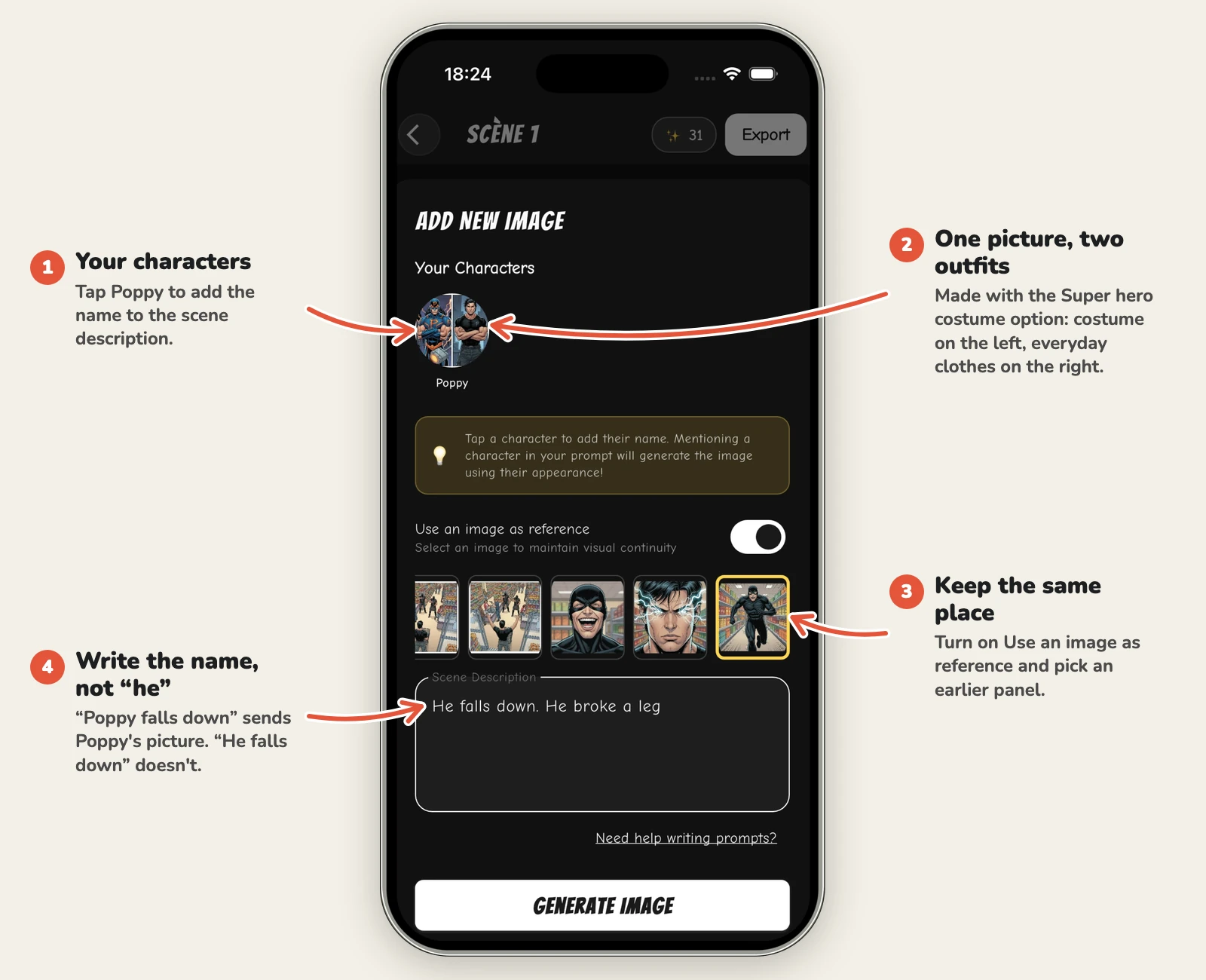
In the panel editor, tap a character to add their name to the scene description. As the app’s tip puts it: “Mentioning a character in your prompt will generate the image using their appearance!”
Behind the scenes, Emaki looks for each saved name in your description. For every name it finds, it attaches that character’s picture and tells the model which name goes with which picture. Name two characters, and both pictures go with the request.
It works the same way for covers.
So in Emaki, the name matters most:
- Write “Nora”, not “the girl”. No name, no picture.
- Spelling counts, capitals don’t. “nora” works. “Nara” doesn’t.
- Pick names that don’t hide inside other words. Emaki finds the name anywhere in the text, so a character called Ana also turns up in “Anabel” and in “banana”.
Step 4: Use the last panel as a reference
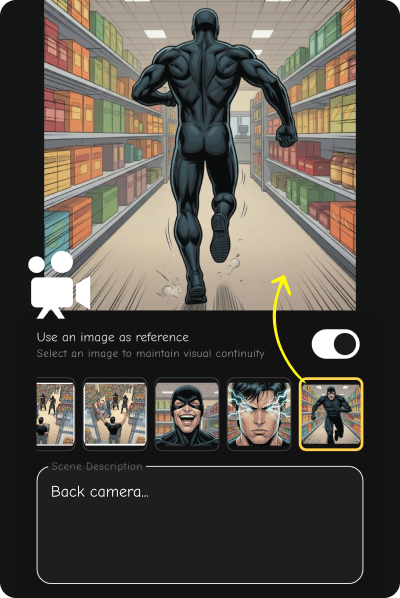
For panels set in the same place, turn on Use an image as reference and pick the earlier panel. Emaki sends that panel with its description, so the setting, the light and the characters’ looks carry over.
Each image you generate, character or panel, uses one credit.
When a character still drifts
Go through this list in order:
- Is the name there, spelled right? In Emaki, no name means no picture.
- Did the description change? Put back the exact words.
- Are there too many characters in the panel? Google’s Nano Banana 2.1 keeps up to 4 characters from reference pictures. Split a crowd across several panels, or keep minor characters in the background.
- Is the reference picture busy? A background or a second person gives the model more to copy than your character. Use a picture of the character alone.
- Did the face slip after many edits in one chat? Start a new chat with the full description, as Google suggests.
- Is it one bad panel? Retry it. Each try is a new draw.
FAQ
Why does AI change my character’s face?
Each image starts from scratch, and your words leave most details open. The model fills them in at random, and differently each time. A reference picture of the character closes those gaps.
Can ChatGPT or Gemini keep a character consistent?
Partly. Both let you attach a picture of your character. Over a long chat, details can still drift. Google suggests starting a new chat with a detailed description when that happens. An app that saves your characters spares you from attaching the pictures by hand.
How many characters can I put in one panel?
It depends on the model. Google’s Nano Banana 2.1 keeps up to 4 characters from reference pictures, and Nano Banana Pro up to 5. For a crowd, put your main characters up front and leave the rest as background figures.
Do I have to draw the character sheet myself?
No. Generate the front view from your description, then ask for the other views with that picture attached. In Emaki, the picture you save for each character plays this part.
Can my character change clothes and keep the same face?
Yes. Keep the name and describe the new outfit in the panel: “Nora, in her school uniform”. The picture holds the face, hair and build, and your words change the clothes. Check the result, and retry if the old outfit comes back.
Can I make consistent AI characters for free?
In Emaki, a new account gets one free credit, which makes one image. After that, you buy credits or subscribe. Bought credits never expire. Each character picture and each panel uses one credit.
Make your first character
Write a fixed description of your main character, then download Emaki and save them as your first character. The AI character creator page has more examples. For a quick test first, drop your character’s picture into our free wanted poster generator.